Care plans
A care plan describes the care of one resident: the objectives the team pursues and the care lines that are carried out every day. It lives in the Nursing Care app, under Nursing Care → Care → Plans and Meetings → Care Plans.
Open or create a plan
From the resident’s form: Create the care plan when there is none, or Care Plan to open it.
From the list Care Plans: New, then pick the resident.
From a multidisciplinary meeting: Create the care plan on the resident’s card.
The nurse who opens the plan becomes its Care Coordinator by default. A plan in force must have one.
One live plan per resident
A resident has a single live plan (draft, active or under review). A plan cannot be activated for someone who no longer has a stay in the house: the end of the stay closes the plan.
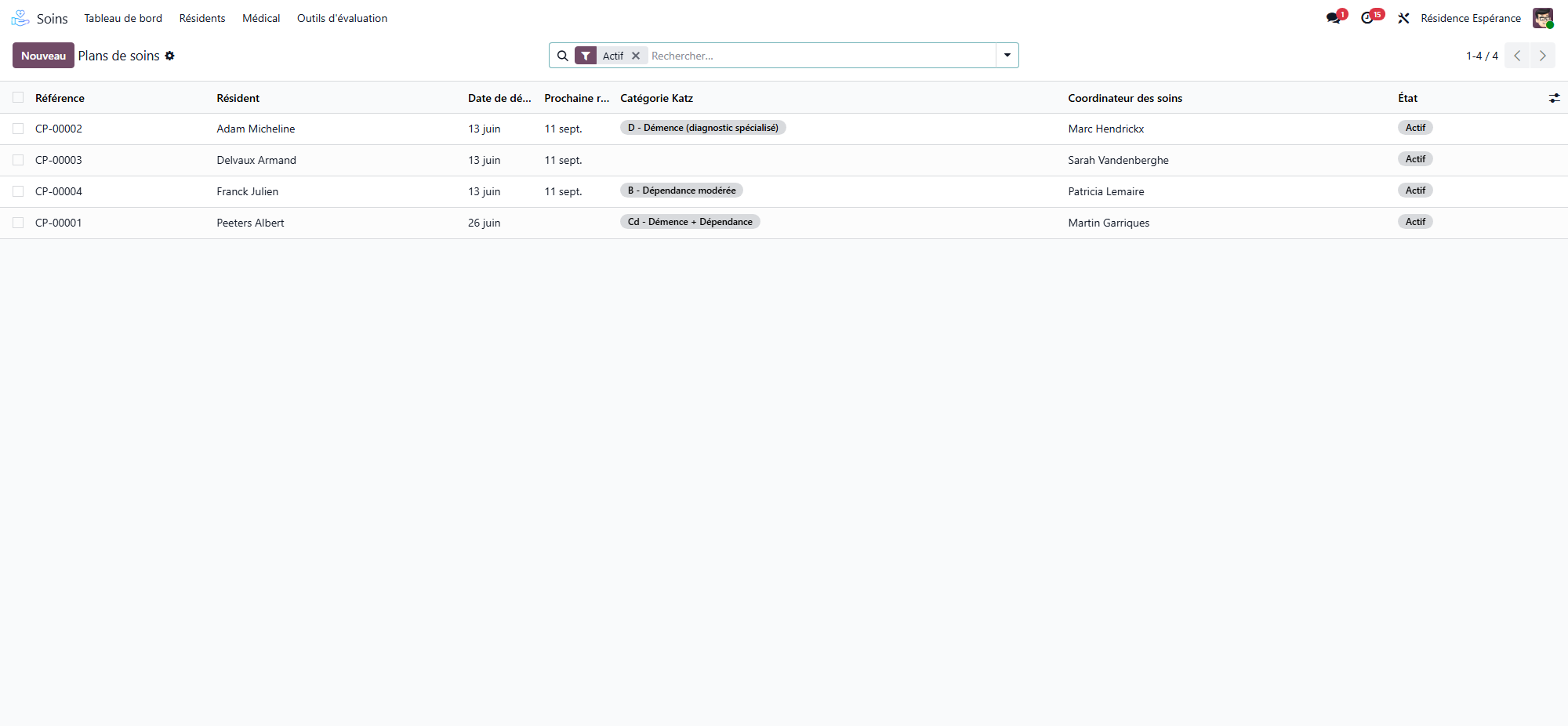
The plan’s life cycle
State |
Meaning |
|---|---|
Draft |
Being written: lines can still be edited or removed |
Active |
In force: its care lines create care tasks |
Under Review |
Being revised |
Completed |
Closed, usually at the end of the stay |
Cancelled |
Cancelled |
The buttons follow the state:
Activate — puts a draft in force.
Review the plan — opens a revision; the button turns blue when the review is overdue.
Confirm without change — records the periodic review when nothing needs to change.
Validate Review — closes a revision and records it.
Reopen — brings a completed or cancelled plan back to draft.
Apply a template — see below.
Under Actions: Cancel the plan (refused on a plan already closed) and Save as template.
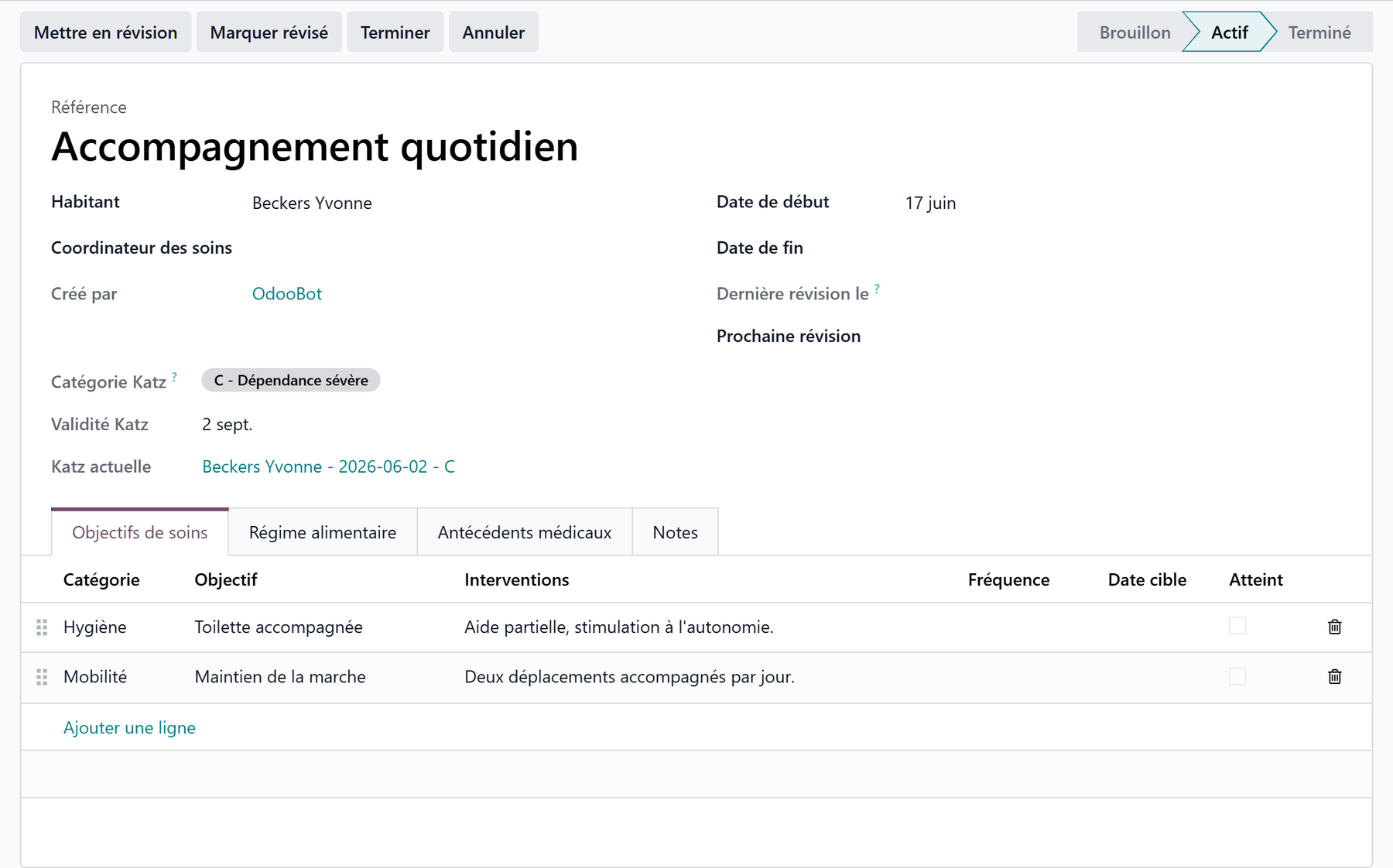
The plan form
At the top, the resident (with their dependency category), Start from template, the Care Coordinator and the sector; on the right the Start Date, End Date, Last Reviewed On, Next Review, the review status (Up to date, Due soon, Overdue) and the share of care delivered. A Review overdue ribbon marks a plan whose review is late, and a yellow note warns when the resident is away.
Smart buttons:
Button |
Opens |
|---|---|
Today’s tasks |
The plan’s care tasks of the day |
Scheduled |
The planned care tasks |
Missed care |
Care nobody answered for |
Care History |
Care stopped, revised or archived |
Objectives |
The objectives |
Reviews |
The plan’s past reviews |
Prescriptions |
The resident’s prescriptions |
To consider / Evidence |
What assessments and registers proposed for this plan |
Tabs: Care Lines, Objectives, Pathologies (the resident’s diagnoses, the same list as on their record), Treatments (the resident’s running treatments, given through the medication round, not through care lines), Nutrition, Notes and Info.
1. Add a care
Click Add a care in the Care Lines tab.
Pick the Activity: its Care Type, duration and the text the carer will read fill in.
Adjust What the carer will read.
Set the Rhythm:
Frequency — Daily, Weekly, Every Two Weeks, Every Second Day, Monthly or Custom;
Moments of the Day — one or several (Morning, Noon, Afternoon, Evening, Night…);
Hour — for a single moment, a precise hour; left empty, the care starts at the beginning of its moment;
Weekdays — required for a weekly or custom rhythm.
Set the Period: Starts and, under More options, Until.
More options also offers the plan, the objective, the department, tags, occurrences, duration, Criticality and the Reason.
Click Add to the plan. The tasks of the day appear on the worklist at once.
One line, several moments
The same care morning and evening is one line with two moments. An hour belongs to one moment: with several moments, each starts at its own time.
On a plan in force, lines typed by hand in the list are planned by the nightly run; Generate Tasks plans them at once.
2. Read the care lines
Each line shows the activity, care type, department, what the carer reads, frequency, moments, hour, weekdays, occurrences, criticality, dates, the number of care Done and Missed, its Origin (the record it was decided from) and its Status:
Status |
Meaning |
|---|---|
Draft |
On a draft plan |
In force |
Carried out |
Starts later |
Begins at a future date |
Stops today |
Ends tonight, greyed |
Suspended |
On hold for a few days |
Revised |
Replaced by a newer version |
Stopped / Archived |
No longer carried out |
3. Change, suspend or stop a care
The icons at the end of a line, on a plan in force:
Revise this care — closes the current line the day before the new one starts, and links the two. The plan can still say what was in force last month.
Suspend this care for a few days — no task on those days; the care resumes by itself the day after. Resume this care now ends the suspension early.
Stop this care today — asks for a reason; what is still planned after today is cancelled, what was given stays on the record.
Stop and archive this care — stops it today and moves it to Care History, with its reason.
Open the record this care was decided from and See the care tasks.
The bin is for drafts only
On a draft plan, a care nothing has happened on shows a bin: Remove this care, added by mistake. WideCare confirms that nothing stays on the care file. On a plan in force there is no bin: a care is part of the record for years, so it is stopped or archived with a reason. The same rule applies to objectives.
A care in Care History can be brought back from there.
4. Start from a template
Pick a template in Start from template, or click Apply a template. The dialog shows the resident, their dependency category, the template, Care starts on, What this template assumes and What will be done.
On an empty plan, the template is simply applied.
On a draft plan that already holds objectives or cares, choose Add to what is already on the plan or Replace everything with this template, then Add to the plan or Replace everything.
On a plan in force, the template’s objectives and cares are added.
Templates are listed with the one matching the resident’s dependency category first. To build one from a plan, use Actions → Save as template. See Care configuration.
5. Objectives
The Objectives tab lists each objective with its Category (Hygiene, Mobility, Nutrition, Medication, Social, Cognitive, Pain, Skin Care, Elimination, Sleep, Other), Objective, Interventions, Assigned To, Target Date, the care Planned, Done and Missed, and Achieved.
An objective opened on its own form has:
Observation — writes an observation linked to the objective;
Open the Care Plan;
the tabs Interventions, Planned Care (with Plan the Care, which adds the care that serves the objective to the plan), Observations and Evaluation.
Nursing Care → Care → Plans and Meetings → Objectives lists all objectives (filters My Objectives, Unassigned, In Progress, Achieved). An objective written from the life project lands here too.
6. Evidence to consider
When an assessment or a register is validated, it is cited on the plan as a proposal. To consider opens the proposals still to decide: Take into account or Do not retain, with the reason. The citation keeps what the assessment said that day.
7. Review the plan
The plan is reviewed periodically; the Next Review date follows the house’s cadence or the country’s rules.
Nothing to change: Confirm without change.
Changes: Review the plan, adjust, then Validate Review.
Each review is written down: who, when, what changed and the conclusion. Nursing Care → Reports → Plan Reviews lists them (filters Confirmed without change, Adapted, In a meeting). A multidisciplinary meeting also records a review.
In Belgium
A nursing-home care plan is reviewed every 30 days; a day-care user’s plan once a year. The plan shows the resident’s Katz category. See Care in Belgium.
Find a plan
Filters: My Care Plans, No Coordinator, My Sectors, Active, Under Review, Drafts, Completed, Cancelled, Review Due, Review due soon. Group by resident, coordinator, state, sector or dependency. Care Tasks → Care Tasks → My Care Plans lists the plans you coordinate.
Going further
Capability observation (Potentia) — care plan objectives drawn from a capability observation.