Tasks
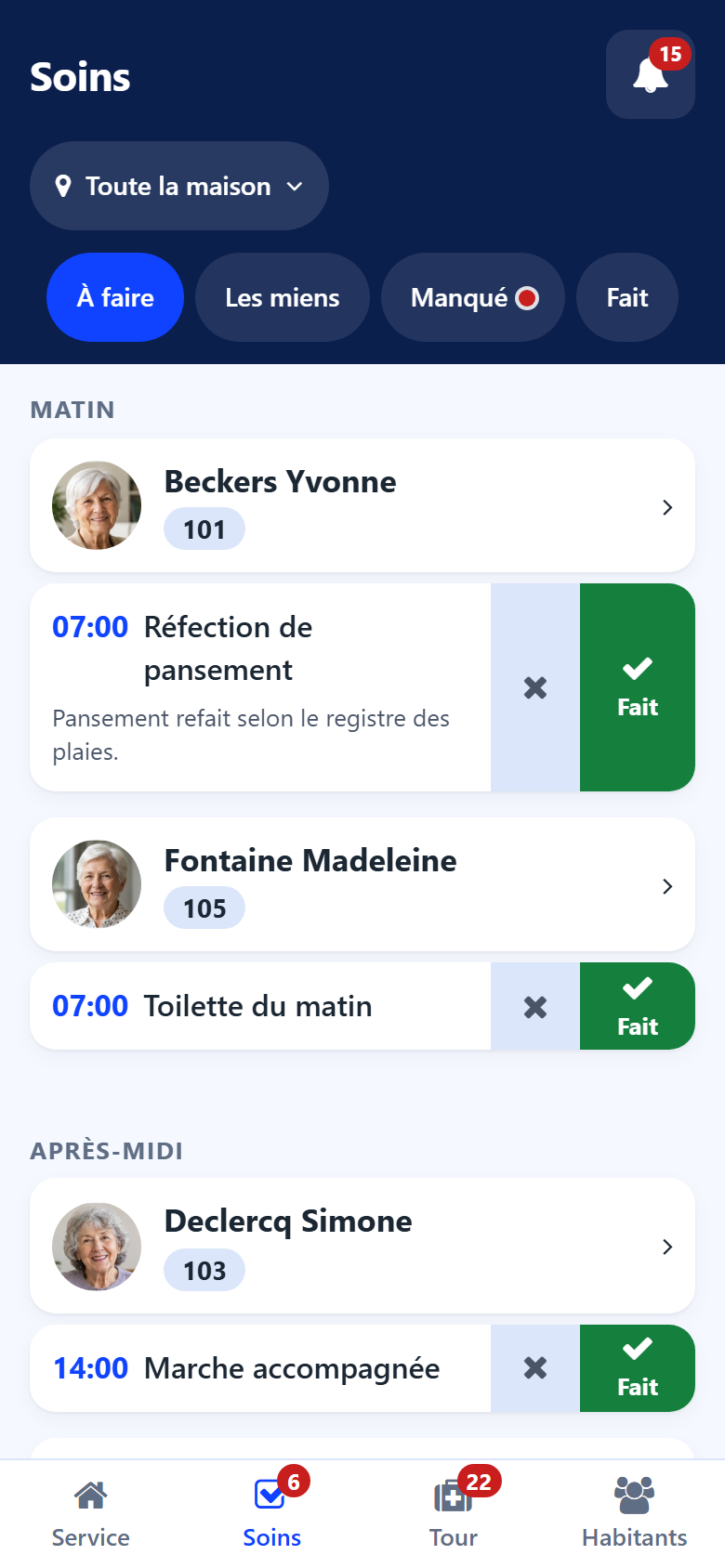
The Tasks screen lists the work of the day in the chosen sector: the cares planned in the care plans and the house’s other tasks (housekeeping, technical, move-in steps…). They are grouped by period, then resident by resident with the face and the room. A task about a room and nobody in particular shows the room.
Choosing the day
The day sits at the top of the screen.
The arrows go to the previous or the next day.
Tap the day to choose Yesterday, Today, Tomorrow, or Pick a day.
Another day than today is read only: a line above the list says so. A past day shows what it left open; a care it left that is still owed is on today’s list. A day to come shows what is planned for it.
Tabs
To do — the tasks still to carry out.
Mine — the tasks assigned to you.
Missed — the cares not done in time and still owed. A red dot on the tab says some are waiting. Today only, for the care staff.
Done — the tasks closed that day.
Filters
The filter button narrows the list:
Which moment? — All day or one period of the day, each with the number of tasks it holds;
Which type of task? — All types or one type: a type of care, or a kind of task (housekeeping, technical…).
A filter on is shown under the tabs, with a cross to remove it. When a filter leaves nothing, Show everything removes them all.
What a line shows
the time, the name of the task, and its rank when it is part of a sequence;
Still owed or Since a day — a care of an earlier day still owed;
High priority or Critical — the care’s criticality;
Late — the deadline has passed;
the kind of task, for the house’s other tasks;
you — assigned to you;
To fill in — the task asks for a record (a scale, a weighing): see below;
the medical devices to know of, on a meal-assistance care;
On this phone — recorded, not sent yet.
Marking a task done
Swipe the line to the right: Done. The task leaves To do and appears in Done. A wrong swipe is taken back with Undo, offered for a few seconds.
A care that is answered by a record opens that record instead of a bare tick:
a stools and urine care opens Stools and urine;
a care that asks for a scale or a weighing — To fill in — opens the evaluation or the vital signs. Saving it ticks the care. To fill in at the desk means the record is made in the back office;
a hydration round opens the drinks, an intake monitoring care the meal round.
Other outcomes
Press and hold a line to see every choice:
Done and Not done, as the swipes;
Done, with a comment — a word worth knowing: washed at the sink, ate half…
Postpone — to another moment or day;
Details — the whole task.
Not done
Swipe the line to the left, or choose Not done.
Choose why from the list. Other asks for a word.
Add a word if useful.
Tap Record as not done.
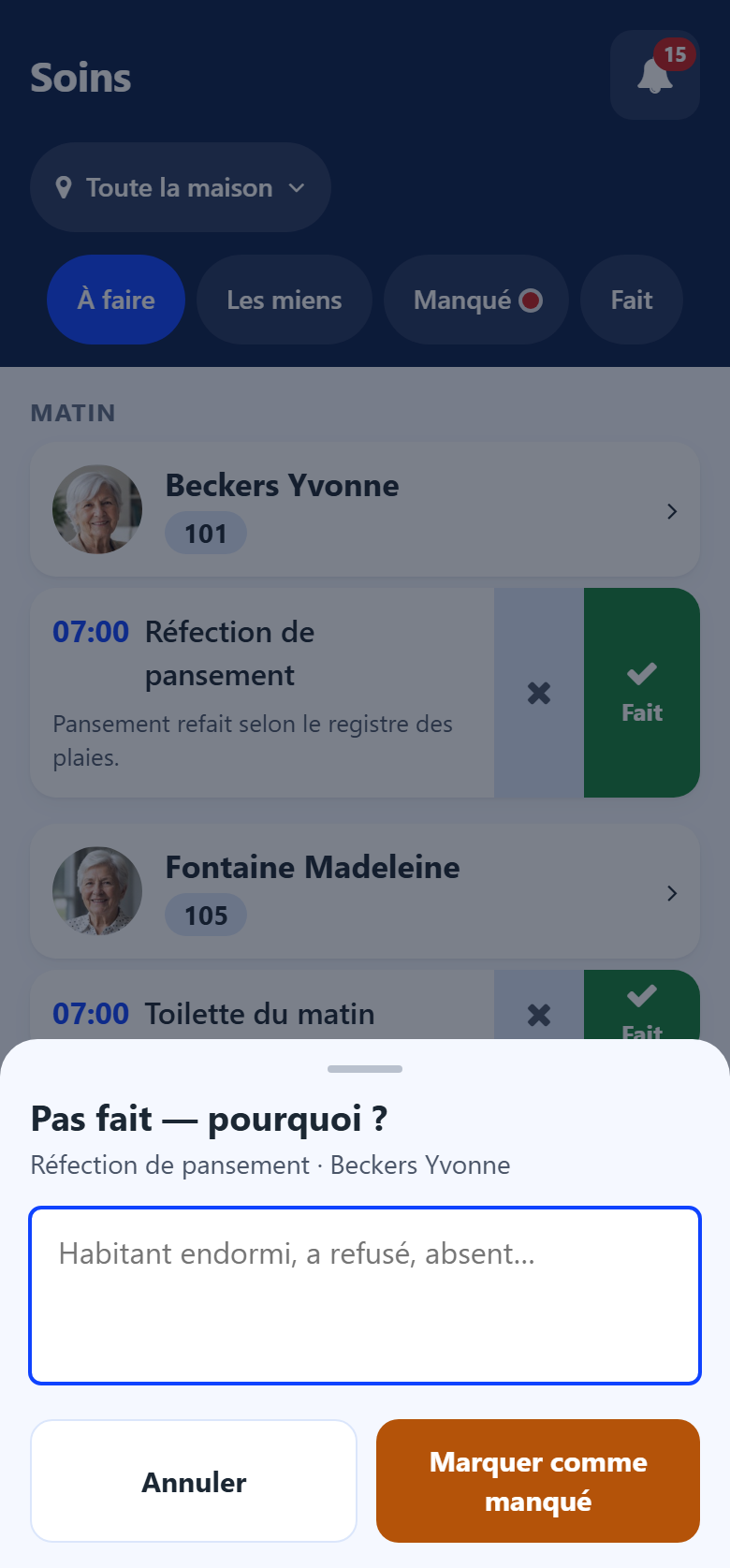
A care answered Not done leaves Missed: it has its answer. The head nurse reads the reason in the back office. It can still be marked done or postponed afterwards.
Postpone
The sheet asks one question at a time; each answer folds into a line you can tap to change it.
To which day — today or one of the next 7 days.
At what time — a period of the day, Same moment for another day, or Precise time. The moments already over today are not offered.
Why not now (or Why not today) — the reason.
Tap Postpone.
The care is moved to the day and the moment chosen, and shows Postponed to on the original line.
The detail of a task
Tap the name of a task to read it whole: its full instruction, its status, when it is planned, its type, its criticality, who it is assigned to, its team, who did it, and how it ended. From the detail:
Done, Done, with a comment, Not done and Postpone, while the task is open;
Fill in — for a task that asks for a record, even after a Not done: the record is still awaited;
Observation — writes an observation about this care, filed under it. See Observations.
Note
A care planned in a care plan and never answered is marked missed automatically two hours after its period (or its hour) is over. It then appears in Missed, in the Missed cares card of the shift screen and in the bell.
Adding a task
The + button at the top writes a task on the spot: a care act nobody planned, or work for the rest of the staff. See New task.