Resident documents
For each resident, WideCare keeps a document folder in the Documents app: scans, signed agreements, letters received. You have nothing to create or file by hand: the folder, its subfolders and the filing of attachments are automatic.
Prerequisite
This page needs the Documents app. Depending on your installation, it is Odoo’s own Documents app or the open-source Documents app; WideCare builds the same resident folders in both, and a few screens differ — they are pointed out below. Once installed, the resident folders and tags are set up automatically.
The Documents tab of the resident’s record
The resident’s record has a Documents tab: everything printed or opened for this resident, in one place. Each tile opens or prints one document — the medical record, the medication sheet, the invoices, the residence certificate… depending on the apps installed.
The Document Workspace tile opens the resident’s folder in the Documents app. It shows how many files the folder holds — Scans, signed agreements, letters received — subfolders included. It only appears for users who have access to the Documents app.
With the open-source Documents app
The shortcut is a Documents button at the top of the resident’s record, with the same counter. It opens the resident’s files, in a view that shows the folder and its subfolders; an eye icon on each card previews the file without opening it.
One folder per resident, created automatically
As soon as a resident is created (or as soon as their record becomes a resident record), WideCare creates their personal folder under the Residents folder, with three subfolders:
graph TD
  A[Residents] --> B[Blank forms]
  A --> C[Resident name]
  C --> D[Medical documents]
  C --> E[Administrative documents]
  C --> F[Billing documents]
Subfolder |
What goes in it |
|---|---|
Medical documents |
The resident’s assessments, forms and medical items. |
Administrative documents |
Stay agreement, ID documents, agreements, letters. |
Billing documents |
Invoices and items related to the resident’s billing. |
The folder carries the resident’s name and renames itself when the name changes. Folders are sorted alphabetically. Two residents with the same name each get their own folder.
Protected folders
The resident’s folder belongs to no individual staff member. With Odoo’s Documents app, the team can open it, but an ordinary user cannot delete or rename it. This keeps you from losing a resident’s whole document structure by accident.
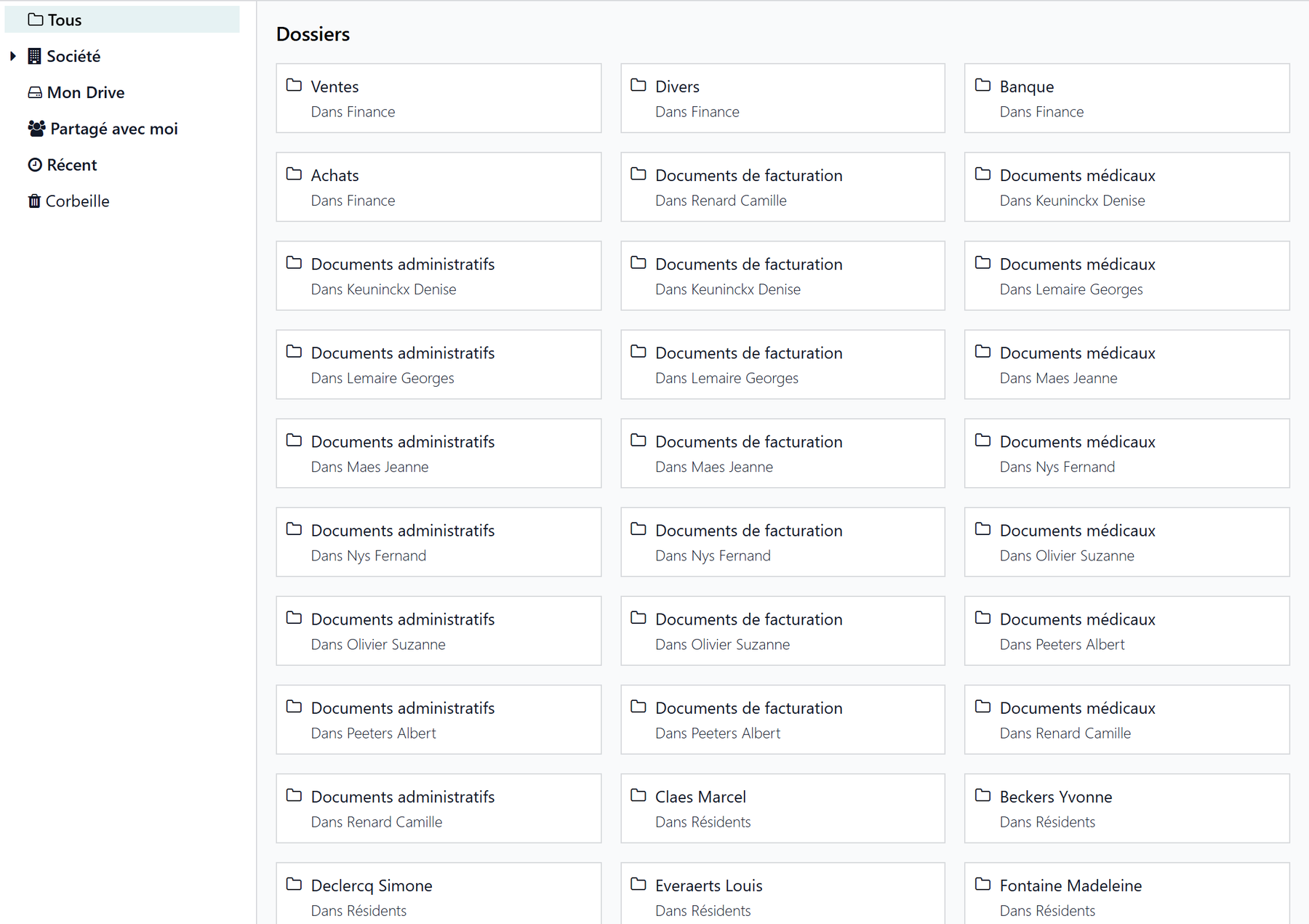
Folders created for the facility
When the company (the facility) is created, WideCare sets up two folders in the Documents app:
Residents — the folder that contains all resident folders.
Blank forms — your templates and documents to fill in (standard agreements, blank medical forms…).
With Odoo’s Documents app, Blank forms sits inside Residents; with the open-source Documents app, both are top-level folders side by side.
Separated by facility
In multi-company, each facility has its own Residents and Blank forms folders. Documents stay separated from one home to another.
Predefined tags
WideCare provides ready-to-use tags to categorise documents and find them by filter:
Tag |
Typical use |
|---|---|
Medical form |
Medical forms and documents. |
Stay agreement |
The agreement signed with the resident. |
Billing |
Invoices and billing items. |
GDPR consent |
Consents and privacy-related documents. |
End of stay |
Departure or death documents. |
The other predefined tags are for documents that follow the country’s rules: the dependency assessment, the agreements and decisions of the health insurer, and the coverage granted by a public welfare body.
In Belgium
These tags are Katz evaluation, MR/MRS agreement (eAgreement), OA allocation and CPAS. See Care in Belgium.
Apply tags automatically
With Odoo’s Documents app, one or more of these tags can be applied automatically to every centralized document, with the Default Tags setting. See Automatic centralization of attachments.
Automatic filing of attachments
A file attached to a resident’s record or discussion thread lands in their folder by itself, with the default tags. See Automatic centralization of attachments.
Not to be confused with the family’s documents
The resident’s folder is the team’s. To hand a document to the family, add it to the resident’s family space, where its category decides which relatives see it: see Notebook, documents and invoices.
Key points to remember
Each resident has an automatic folder with three subfolders: medical, administrative, billing.
The Documents tab of the record opens it, with a counter that includes the subfolders.
The folder follows the resident’s name and belongs to no individual staff member.
Each facility has its own Residents and Blank forms folders.
Predefined tags make filtering easier.