The meal round
The meal round follows each meal all the way to the resident: who eats where, who has been served, who refused and why, who is absent, and how much each one ate. At the desk it lives in Meals → Operations; on the floor, carers record it on their phone (see Meals and drinks in the care app). Both write the same records.
Places are laid by the kitchen
A resident’s place (a meal service) is created when the kitchen confirms the menu, with the menu’s dishes. Nobody lays places by hand, and the care app says so as long as the menu is still a draft. See Menus, diets and allergies.
1. Confirm the menu
Open Meals → Operations → Menus and the menu of the meal.
Click Confirm. Every resident served at that meal gets a place.
A resident arrived since? Click Lay Missing Couverts: the missing places are laid and the list of the meal’s places opens.
Residents away follow the attendance on their own:
A resident in hospital or away that day gets no place, and their places already laid are marked Absent (Away from the house). When they come back, the places of the meals still ahead open again.
A resident who comes only part of the day gets the meals of their hours.
A place marked absent by hand (a family outing, for example) stays absent.
2. Follow the round
Meals → Operations → Distribution opens a board of the day’s places still to serve, grouped by place: Dining Room, In Room and Absent. Each card shows the photo, the room, the sector, the diet codes and, where relevant, an ALERT, Warning, Served, Refused, Later or Amount to note badge. The bar on top of each column shows how many are served, refused, later or still to serve.
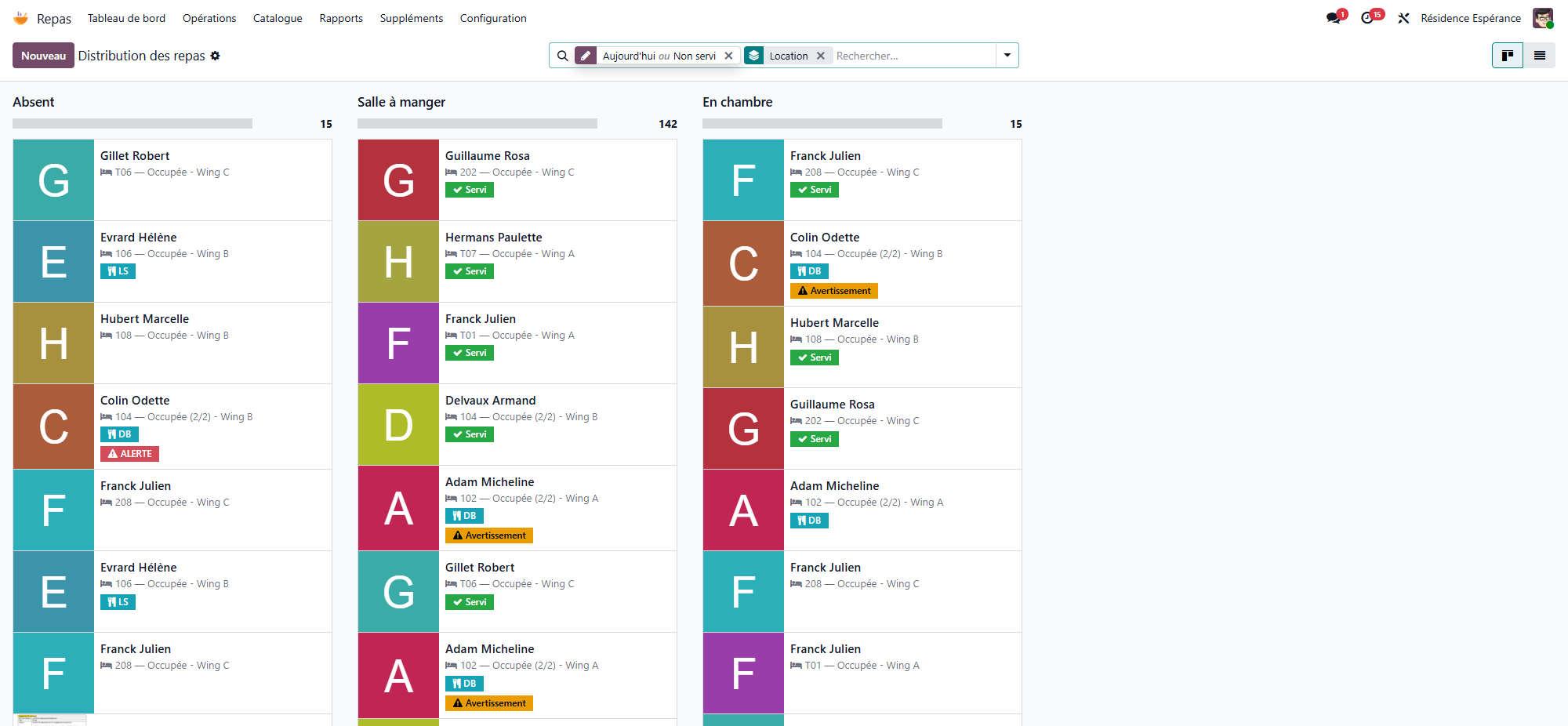
Meals → Operations → Meal Services shows the same places as a list, coloured by state (red for a critical alert, orange for a warning, green when served, grey when absent, blue when later). Useful filters:
To Serve, Served, Refused, Later, Amount to Note;
Dining Room, In Room, Absent;
Warnings, Critical Alerts;
group by Location, Outcome, Sector or Room.
From the list, select several places and click Mark Served or Mark Absent. The Action menu also offers Mark in Dining Room and Mark in Room. Only places still to serve or later are changed.
3. Record each plate
Open a place to act on one resident. The buttons shown depend on the state of the plate:
Button |
Effect |
|---|---|
Served |
The plate is served. The hour and the person who served are kept. |
Refused |
The resident refused the meal: pick the Refusal Reason first (Not hungry, Does not like it, Nausea / unwell, Asleep, Other). Other needs a word in Outcome Note. The amount eaten becomes Not Eaten. |
Later |
The meal is served later (fasting for an exam, not up yet). It stays to serve and is not counted as late; say why in Outcome Note. |
Absent |
The resident is not at the table. Only a plate still to serve or later can be marked absent. |
Undo |
Back to To serve: amount, refusal, hour and person are cleared. |
The Location field says where the meal is eaten: Dining Room or In Room.
Correct with Undo
A plate already served or refused is a recorded fact: WideCare refuses to mark it absent or later. Click Undo first, then record what really happened.
Dietary alerts on the plate
A red banner CRITICAL DIETARY ALERT! or an orange Dietary Warning: explains the problem (allergen, diet, texture). A plate with a critical alert cannot be marked as served. The Compatible Dishes button lists the dishes of the catalogue that raise no warning for this resident; change the Dishes of the place, then serve it. A dish changed for one resident stays when the menu changes. See Menus, diets and allergies.
4. Record the amount eaten
After the meal, on the place, click the amount under Record the amount eaten:
Button |
Meaning |
|---|---|
Not Eaten |
The resident ate nothing. |
25% |
About a quarter of the plate. |
50% |
About half. |
75% |
About three quarters. |
Fully Eaten |
The plate is finished. |
A plate still to serve becomes Served with the amount.
A refused plate stays refused, unless something was eaten after all.
If an Intake monitoring care was planned for this resident at that meal, it is marked done with the amount. Undo opens it again.
The amount, multiplied by the values per portion of the dishes, gives the actual intake (energy, protein) of the resident. See Nutritional monitoring and undernutrition.
Amounts owed
Intake Required is ticked on the places of residents followed for nutrition. The Amount to Note filter lists their served plates without an amount: note them before the end of the shift.
5. Close the meal
On the menu, click Mark as Served (or Complete on the dashboard card): the menu moves to Served.
Traceability
A plate served or refused, and a menu in the Served status, can no longer be deleted. Correct the information on the existing record.
The printable sheets by sector
To work on paper, open a menu (form or list) and use the Action menu:
Print Distribution Sheet — the sheet of that meal;
Print All Daily Sheets — the sheets of all of today’s menus that are not cancelled.
WideCare lays the missing places along the way, then opens the document in a new tab. The sheet has:
one page per meal and per sector, with a header: sector, meal type, date and number of residents;
a table: #, Resident, Room, Diets / Allergies (diet codes and the texture when it is a modified one; allergies in red; a red ! for a critical alert), then the boxes Dining, Room, Absent and Served, and a Notes column;
a footer with a Supervisor signature line and the print date and time.
The boxes already reflect what is recorded: the place of the meal is filled in, Served is filled in green for a served plate, and a cross marks a refused one. Staff tick the rest during the round, the supervisor signs, then the round is recorded in WideCare.
Key points to remember
Confirming the menu lays the places; residents away get none.
A plate is To serve, Served, Refused, Later or Absent; Undo corrects it.
A critical dietary alert blocks Served until the dish is changed.
The amount eaten is a button on the place; it feeds the nutritional follow-up and closes the Intake monitoring care.
The printable sheets by sector are the paper fallback.
Going further
Meals in a residence — a serviced residence’s residents get a place only for their Meals taken here.