Residents
Residents list
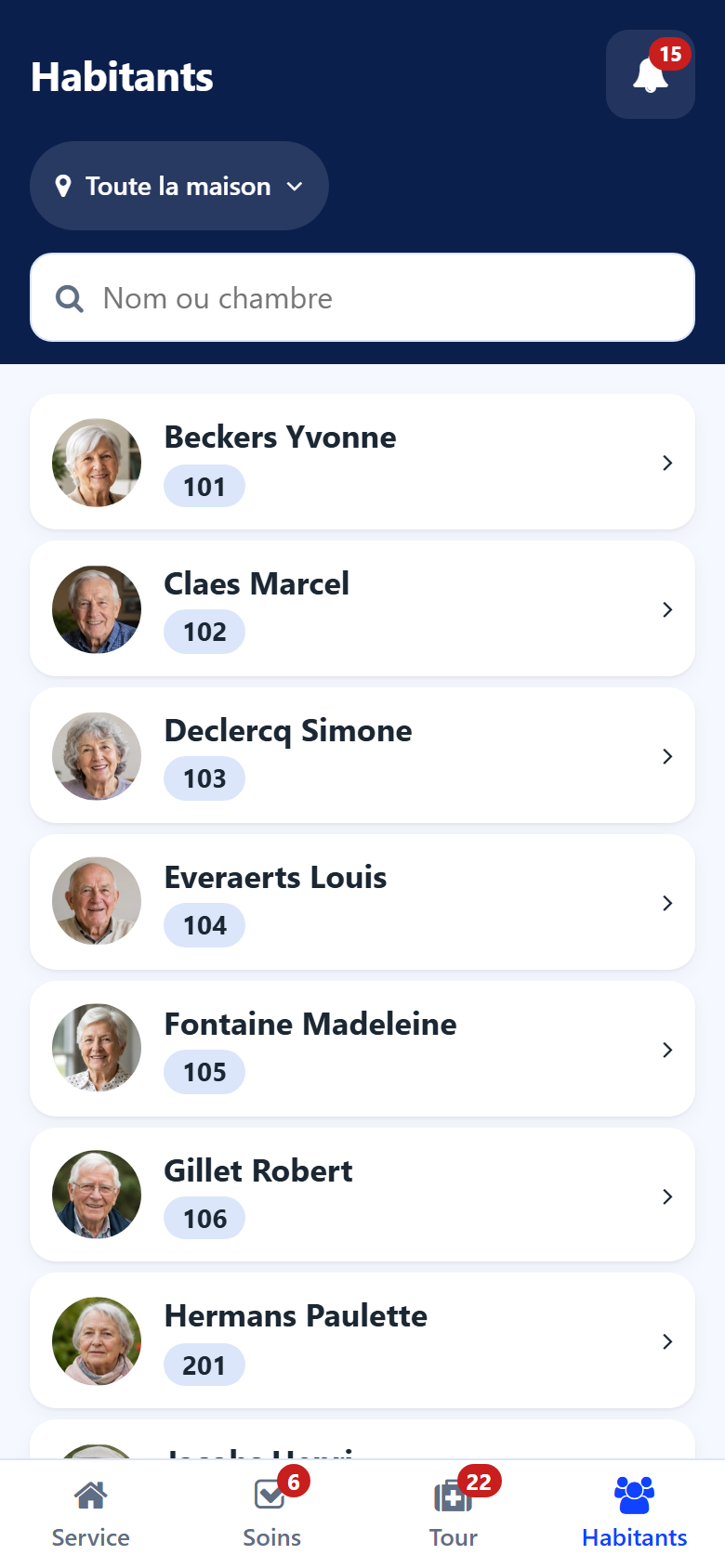
The Residents screen lists the residents of the chosen sector, with their photo, their room and, when they are away, where they are.
Type part of a name or room in the search field; the cross clears it.
Tap a resident to open the sheet.
Opened from a figure of the shift screen — the residents away, the day’s admissions… — the list shows only those residents, with a button recalling the figure; tap its cross to see everyone again. In a large house, a line says when the list is cut: narrow your search.
Resident sheet
The sheet gathers what the staff needs in front of the resident. What it shows depends on your account: the kitchen does not see the medication, for example.
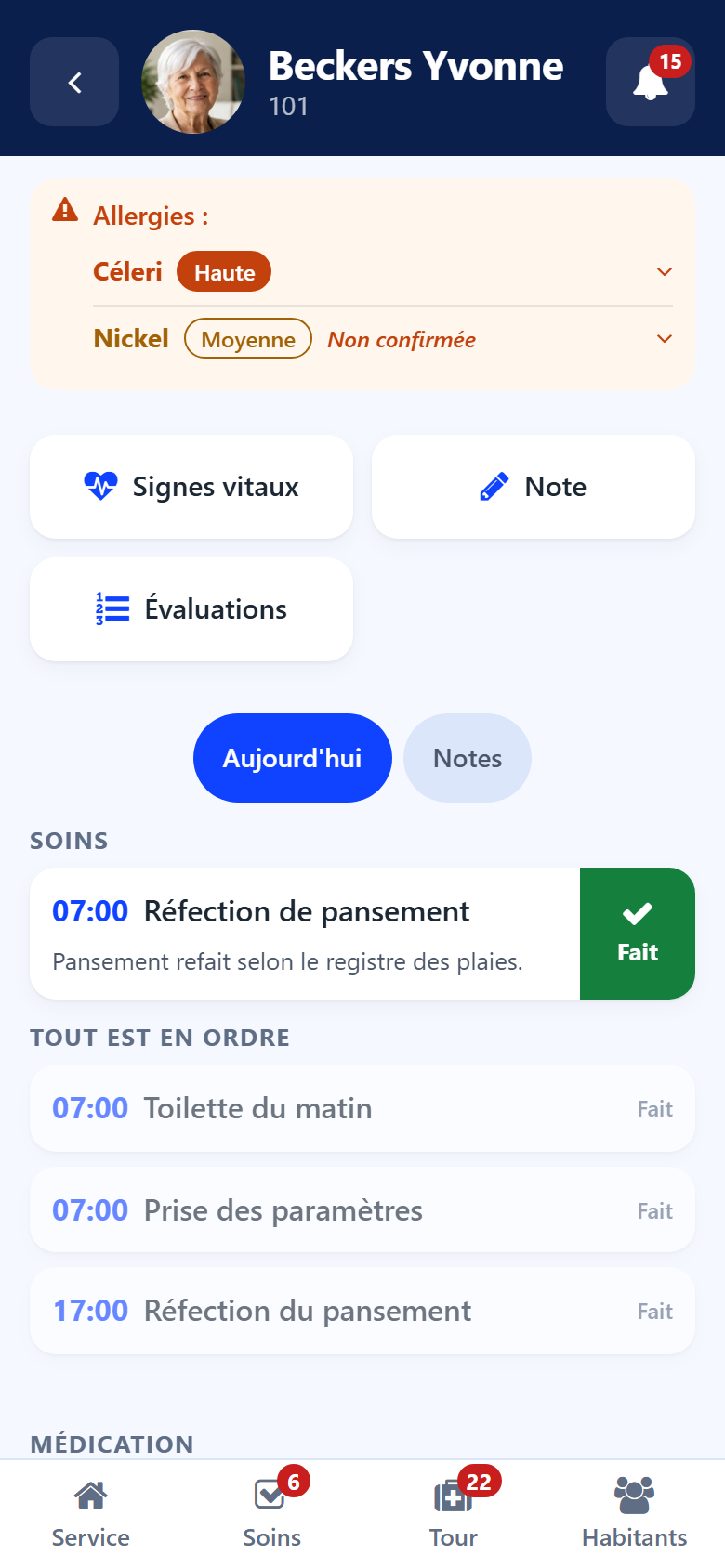
Top of the sheet
Photo — tap it to enlarge it and check you have the right person.
Room and sector under the name, and where the resident is when away (in hospital, on holiday…).
The bell, as on the lists.
The resident in brief
What is asked for in a hurry:
DNR — do not resuscitate, in red, when the record says so;
Advance directive on file;
the Meal texture and the Preferred hospital;
the phone numbers to call — emergency contact, legal representative, trusted person, the resident: tap a number to dial it;
the general note of the record, on three lines: Read all shows the rest.
Allergies, pathologies and diets
Allergies — the most severe first, each with its severity. The strip takes the colour of the most severe one. Tap an allergy to read the reaction. An allergy not yet confirmed says Not confirmed. Beyond three allergies, only the serious ones show; tap other allergy(ies) to see them all. With no allergy entered, the sheet shows No allergy recorded.
Pathologies — the active diagnoses the cares answer to, the most severe first. A question mark marks a diagnosis not confirmed.
Diets and Texture — what goes on the resident’s plate.
Points of attention
Under the allergies, the lines that must not be forgotten:
To do: a scale awaited — tap it to fill it in;
a scale to validate at the desk — already filled in, waiting for the desk;
Back from hospital: treatments to reconcile at the desk;
Away from the house.
Stools and urine
When the resident is followed, a card says where stools and urine stand: the status, how long since the last one, the volume of urine over 24 hours. See Stools and urine.
Quick buttons
Vital signs → Vital signs
Stools / urine → Stools and urine
Observation → Observations
Evaluations → Evaluations
New task → New task
Capacities, when the capability observation is installed → Capability observation (Potentia)
Each button appears only for the accounts that may use it.
Today
The Today tab lists the resident’s day. What is still to do comes first; what is settled follows under All in order. When nothing is planned, the sheet says Nothing scheduled today.
Cares
The day’s cares, with the same gestures as on Tasks: swipe right for Done, left for Not done, hold for every choice, tap to read the whole care. A care still owed from an earlier day says which day.
Medication
The day’s doses, with the moment of the round and the hour. A dose of another day says it (Yesterday, a date).
Swipe right — Taken.
Press and hold — Distribute only and Given earlier too.
A dose not given is recorded from the round.
A recorded dose shows corrected or recorded afterwards when it was.
Correcting a dose record
Past the few seconds of Undo, a nurse or a physician corrects a dose record:
Tap Correct on the dose.
Under What happened, choose what really happened.
Under Why the record was wrong, write the reason: ticked on the wrong resident, given but not recorded…
Tap Record the correction.
The record keeps both, the first entry and the correction, and is never changed afterwards.
If needed
The medications given on demand, within what the prescriber allowed: how many were given today out of the maximum, the last one, and the hours to leave between two doses. A dose that may not be given yet says why.
Swipe the medication to the right: Give.
Under Given because, write the sign that called for it: pain, agitation… The prescriber’s indication is shown above, to read.
Tap Give now.
Other tasks
The house’s tasks still open about this resident — a move-in step, the room to prepare — with the same gestures.
Observations
The Observations tab lists the latest observations about the resident. Tap one to read it whole. See Observations.