The condition report (move-in and move-out)
The condition report records the state of a room and its equipment at a given moment: when the resident moves in, then when they move out. It is a joint assessment, signed by the resident’s representative and by the house.
Menu: Nursing Home → Accommodation → Property Inspections.
Each report links a resident, a room and a representative, lists the equipment assessed (OK or Not OK), and produces a PDF report on your letterhead.
graph LR
  A[To do] --> B[Planned]
  B --> C[Done]
  A --> C
An optional module
Condition reports come with their own module. Once it is installed, Property Inspections appears in the Accommodation menu. A new stay also opens the Entry / exit condition report step of the move-in procedure, as a reminder.
1. Create the condition report
Open Nursing Home → Accommodation → Property Inspections.
Click New.
Select the Resident.
Check the Date (now by default) and the Responsible (you by default).
Choose the Inspection Type: Arrival or Exit.
Save: a Reference is assigned (prefix EL-).
The room and the representative fill themselves in
As soon as you choose the resident, WideCare fills in:
the Room, from their current stay;
the Resident’s Representative — the person who signs —, from their first contact person.
Both remain editable, and both are required.
Tags classify the reports as you wish; they are managed in Nursing Home → Configuration → Property Inspections → Inspection Tags.
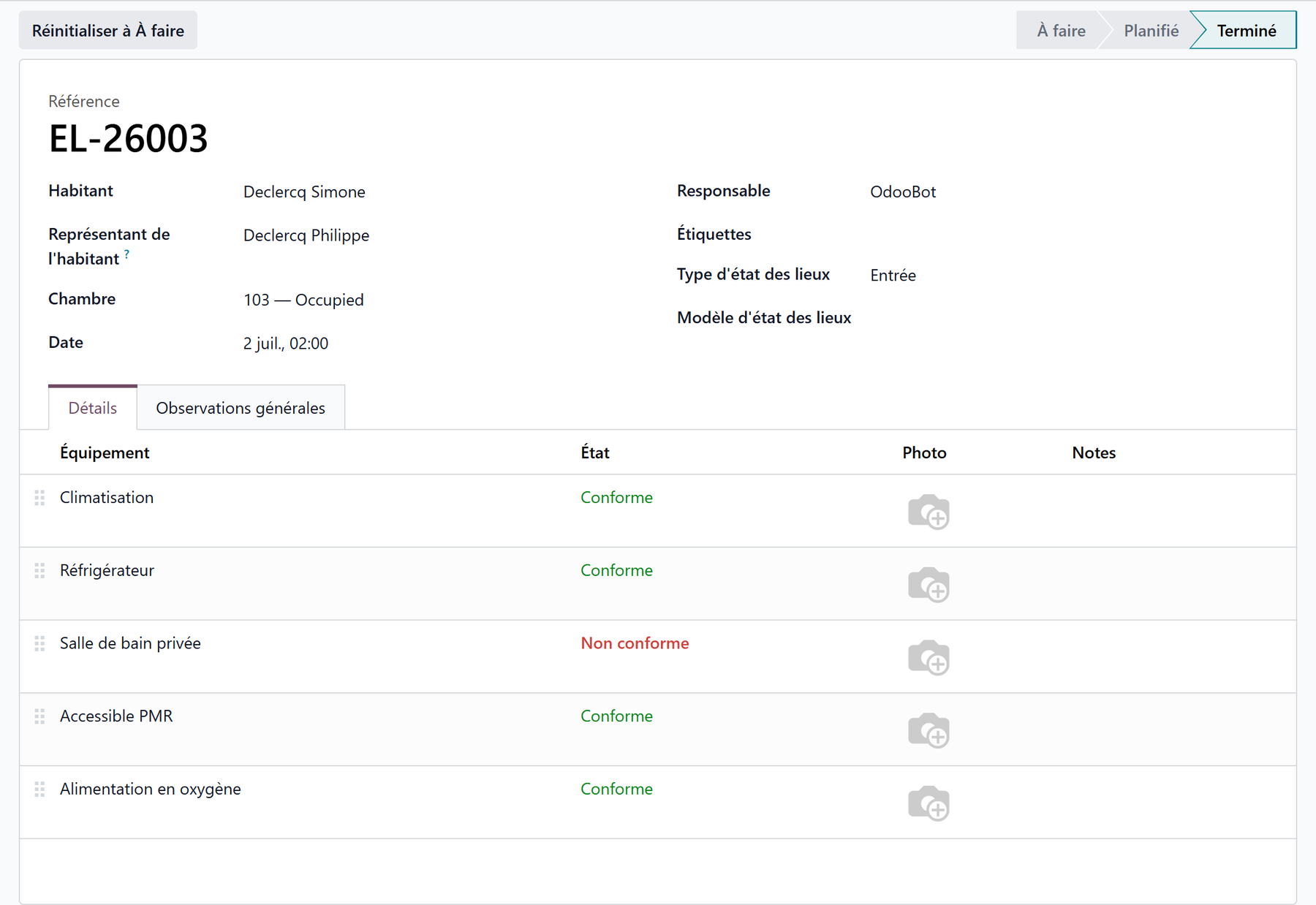
2. Fill in the details
Open the Details tab. Three buttons sit at the bottom of the list:
Add a line — an item of equipment being assessed;
Add a section — a heading that groups lines (“Bedroom”, “Bathroom”…);
Add a note — a free-text line.
For an equipment line:
Column |
Purpose |
|---|---|
Equipment |
The item assessed (required). |
State |
OK or Not OK (required). |
Photo |
A photo of the item. |
Notes |
A free observation. |
Drag the handle on the left of a line to reorder the list. The General Observations tab takes free text about the room as a whole.
The equipment catalogue
The lines point to the house’s equipment catalogue, the same one the rooms use: the bed, the wardrobe, the television, the bathroom… are defined once in Nursing Home → Configuration → Rooms → Room Equipment.
Reusable templates
To avoid re-entering the same list every time:
Create your templates in Nursing Home → Configuration → Property Inspections → Inspection Templates — a name (for example Standard single room), its Lines (lines, sections and notes) and its General Observations.
On a condition report, choose the Inspection Template: its content fills in the report, which you then rate.
3. Follow the status
Status |
Meaning |
|---|---|
To do |
Created, not yet carried out. |
Planned |
The inspection is scheduled. |
Done |
Carried out and closed. |
Cancelled |
Abandoned. |
The buttons at the top move it on: Plan, Mark as Done, Cancel, and Reset to To do to reopen a done or cancelled report. The kanban view shows one column per status.
A done report is locked
Once Done, the report is a finalised record: its resident, room, date, lines and observations can no longer be edited, and it cannot be deleted. To correct it, click Reset to To do — the reopening stays in its history —, then mark it done again.

The search bar filters on Arrival, Exit, To do, Planned, Done and My Inspections, and groups by Status, Inspection Type, Resident, Room or Responsible.
4. Print the report
Print → État des lieux produces the PDF, named after the reference. It holds:
your letterhead and your house colour (set in the document layout);
the Arrival or Exit badge;
the resident, the room, the person in charge, the representative, the date and the tags;
the general observations;
the items assessed, with their state, photo and notes;
a summary of the items, OK and Not OK;
two signature boxes — the resident’s representative and the house — under the place and date, “in two copies”;
a photographic appendix, four photos per page.
Ready for an electronic signature
The signature boxes carry invisible anchors placed for an electronic signature request: the representative’s and the house’s signatures land in the right place. The footer refers to the European eIDAS regulation. Otherwise, print the report and have both copies signed by hand.
Note
The PDF report is printed in French, whatever the user’s language.
Interventions in the room
Where the helpdesk is installed, an Interventions smart button on the report lists the technical interventions made in that room during the resident’s occupancy — the history the move-out report is checked against. See Following an intervention.
Key takeaways
The condition report is a joint assessment, on arrival then on exit, signed by the representative and the house.
The room and the representative fill themselves in from the resident.
Each line carries an item of equipment and a State (OK / Not OK), with a photo and notes; templates save re-entering the list.
A Done report is locked and kept; Reset to To do reopens it.