WideCare app
The WideCare app is the screen made for the phone or the tablet the staff carries in the corridor. It shows only what the shift needs: what is to be done, the medication to give, the resident in front of you, and what must be written down. Everything recorded lands in the same records as the back office.
The app serves the whole staff. Each account sees the screens its rights open:
Care staff — the cares, the medication round, the residents’ sheets, observations, vital signs and evaluations;
Kitchen and dining staff — the meal round and the drinks;
Housekeeping — the rooms to prepare and to clean;
Everyone — the house’s other tasks: a bulb to change, a room to tidy, a move-in step.
Opening the app
From the home menu — tap the WideCare tile.
From the back office — click the phone icon in the top bar.
On a phone or tablet — open the house’s address followed by
/app, then use the browser menu to add it to the home screen. It then opens like any other app, under the house’s name.Directly at sign-in — tick Open the WideCare app at login on the user (or in the person’s own Preferences). The person lands in the app instead of the back office.
The app uses the same sign-in and the same access rights as the back office.
Note
A phone that added the app to its home screen under the former /care address
keeps working: that address leads to /app.
Moving around
A bar at the bottom of the screen gives the main screens. A number on a tab says how many things are waiting there.
My shift — the overview of the shift. → Shift screen
Tasks — the cares and the house’s tasks of the day. → Tasks
Round — the medication round, for whoever gives doses. → Medication round
Residents — the list and each resident’s sheet. → Residents
From a resident’s sheet you write an observation, take the vital signs, record stools and urine or fill in an evaluation. The cards of the shift screen open the meals, the drinks and the rooms.
Sector, team and bell
The same strip sits at the top of every list:
The sector — filters the cares, the round and the residents. Tap it and choose a sector, or The whole house. The choice stays when you change screen.
The team — narrows the cares and the tasks to one team, or Every team. On a screen the team does not narrow (the round, the residents), the button is dimmed.
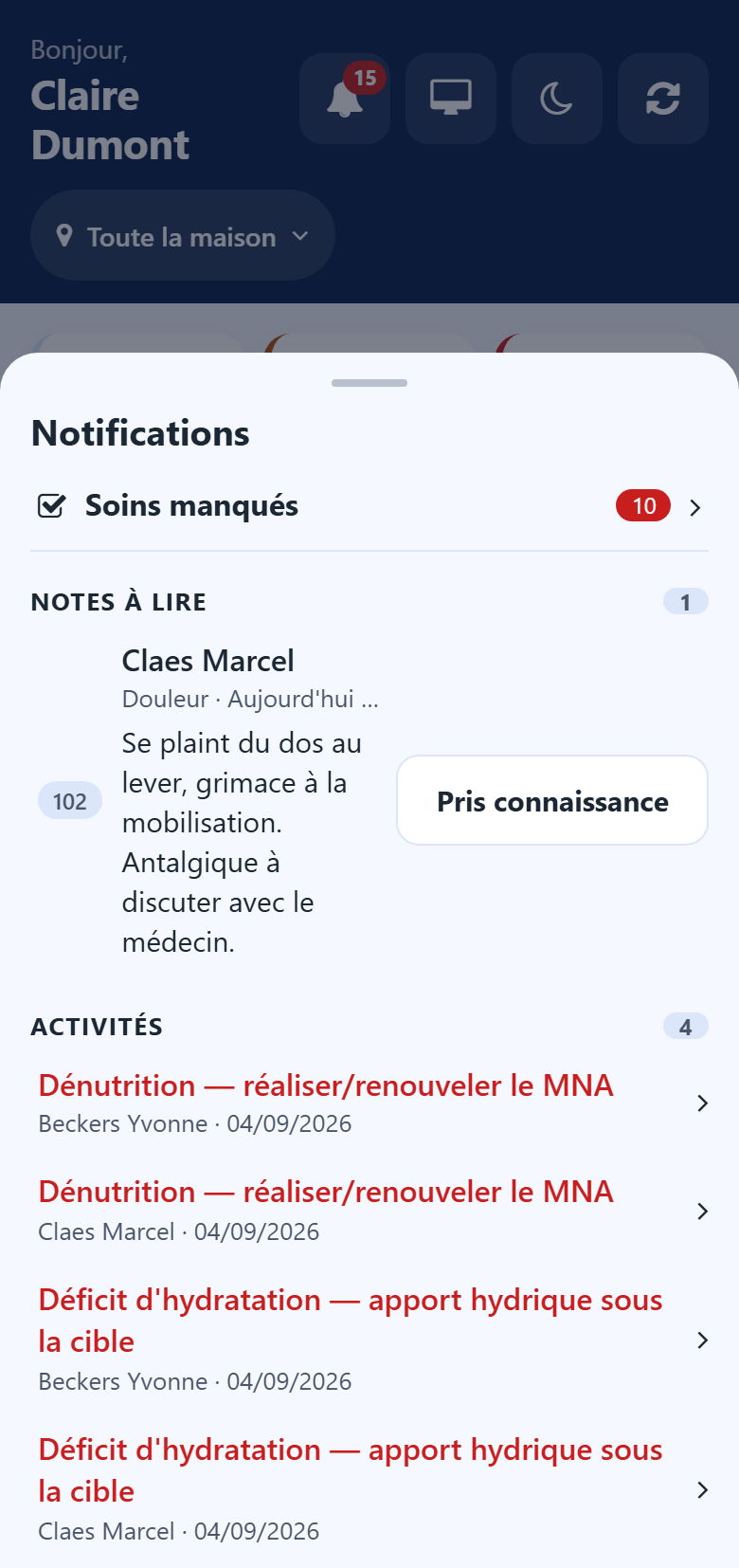
The bell — what asks for your attention now.
The bell
The bell gathers what falls outside the routine. Each line only appears for whoever may act on it:
Missed doses and Intakes to confirm — one line each, opening the round concerned;
Missed cares — opening the cares to catch up;
Observations to read — your colleagues’ observations marked Someone must read this, and the vital signs out of range, each with its text and an I have read it button. Your own observations never appear there;
Stools and urine — the residents to watch or in alert;
the lines the other applications of the house add.
A line leaves the bell once it is settled: the dose given, the care done, the observation read by you.
Gestures on a row
The lines of the lists carry no buttons. Act on them with your thumb:
Swipe right — the usual act: Done, Taken, Served, Start…
Swipe left — its opposite: Not done, Not given, Refused.
Press and hold — every choice for that line, the swipes included, in a menu. This is also the way with a keyboard or a screen reader.
Tap — opens the line’s detail.
A short reminder of the gestures shows above the list until you have used them.
Undoing an act
After an act, a message at the bottom of the screen offers Undo for a few seconds. Use it to take back a wrong swipe.
Working without a connection
The app keeps working when the Wi-Fi drops:
a red band says there is no connection, and how many acts are waiting on the phone;
an amber band says the connection is back and the acts are still being sent;
each act not yet sent carries On this phone;
a screen read earlier stays available, with the hour it was last read.
Warning
Until the band has disappeared, what is waiting is not yet in the resident’s record. Keep the app open until everything is sent. Acts recorded by another account on the same phone are sent when that account signs in again.
Some acts need the connection at the moment of the tap, because the hour of the tap is what counts: starting a room or marking it ready, for example. Without a connection, the app says so and the act is not kept.
The menu behind your initials
On the My shift screen, the round button with your initials opens:
Back office — goes back to the back office, for the roles that work at a desk;
Night mode / Day mode — a dark display for the night shift; the phone remembers the choice;
Refresh — reads the shift again.
The open screens also read themselves again every half minute: what a colleague ticks on another phone or at the desk appears on its own.
Going further
Care — care plans, prescriptions and registers, managed in the back office.